MEASUREMENT HELP
Why is my mouse DPI test wrong?
An unexpected result can come from the ruler measurement, the active mouse profile or the way movement reaches your browser. This guide helps you separate an inconsistent test from a repeatable result that still differs from your configured DPI.
By Mouse DPI Tester · Updated 13 October 2026
Use one mouse, one DPI stage, one test method and one measured distance. Compare the median and spread before changing any setting.
Find the symptom that matches your test
| What you see | Check first |
|---|---|
| Similar results, far from expected DPI | Confirm the active hardware DPI stage, physical distance and input mode. Repeatable readings can still contain a systematic measurement error. |
| Results jump between runs | Check whether you overshoot the ruler mark, rotate the mouse, lift it or switch DPI stages accidentally. |
| Cursor disappears | This is expected in the standard test. Position the mouse, then click or press Space to begin. The screen will say when it is recording. |
| Zero or no movement recorded | Make sure recording has started and move a physical mouse horizontally. Movement during the positioning step is deliberately ignored. |
| Cursor lock is blocked | Open the tester directly in its own tab and allow mouse control if prompted. Try the compatibility drag test if your browser still blocks it. |
| Drag test stops at the window edge | Reduce the measured physical distance or switch to the standard test, which keeps the cursor locked. |
1. Measure travel, not the width of the mouse
Mark two positions beside a ruler. Choose one reference point on the mouse, such as its front edge, and line up that same point with each mark. Moving the front edge from 0 to 10 cm is a 10 cm movement. Measuring from the back of the mouse at the start to its front at the finish adds the mouse’s length and produces the wrong distance.
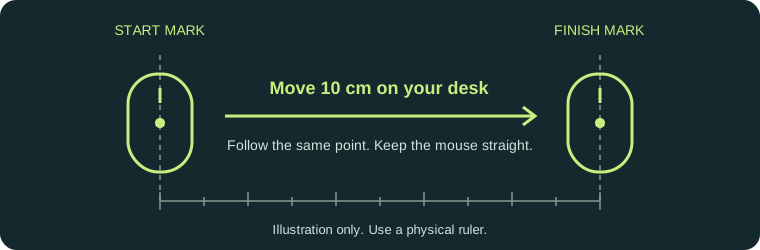
Check the selected unit as well. Ten centimeters is approximately 3.937 inches, and 100 millimeters is also 10 centimeters. Entering 10 and selecting inches describes a much longer movement. The tool converts units for you, but it cannot know which distance your hand actually traveled.
Why a longer distance helps
A 1 mm positioning error is 1% of a 10 cm test, but 10% of a 1 cm test. For example, with otherwise unscaled input from an 800-DPI mouse, moving 9.9 cm while entering 10 cm would produce an estimate of 792 DPI. These are calculated examples, not results from hardware testing.
Use a longer straight movement when you have space. In the drag test, the cursor must also remain inside the window. A long physical distance is not useful if the pointer reaches an edge and the run is interrupted.
2. Check which input mode you used
Standard test: the tester requests cursor lock and unadjusted movement. Support depends on the browser and operating system, so the label says “unadjusted movement requested.” It does not certify that your browser delivered a direct hardware reading.
Drag test: the tester measures changes in the visible cursor’s position. Pointer speed, acceleration, display scaling and browser zoom can affect that result. Use this mode as a cursor-sensitivity estimate, particularly when comparing it with the DPI configured in manufacturer software.
The MDN Pointer Lock documentation explains the unadjusted-movement request and support differences. Its movementX reference also documents variation in movement units across browser and operating-system combinations.
3. Read the median and spread together
The median is the middle value after sorting your completed readings. For an even number of runs, it is the average of the two middle values. Our spread is the highest reading minus the lowest, divided by the median, expressed as a percentage.
| Three readings | Median | Spread | Interpretation |
|---|---|---|---|
| 790, 800, 810 | 800 DPI | 2.5% | Closely grouped. Check input mode if the hardware setting differs. |
| 650, 800, 950 | 800 DPI | 37.5% | The same median hides substantial variation. Repeat with more controlled movement. |
The tester uses a 5% spread as a practical prompt to review your setup. This is our guidance threshold, not a sensor specification, an accuracy guarantee or a hardware pass/fail test. A stable result can be consistently offset if the entered distance or input processing is wrong.
Use Undo last run if you know you made a mistake, such as stopping at the wrong mark. Avoid discarding readings only because they do not match your expected value. The CSV download keeps each completed estimate, its physical distance, expected DPI, input mode, browser movement total and timestamp.
4. Change one thing and repeat
- Confirm the active mouse setting. Check the profile or DPI stage in supported manufacturer software or the model’s manual. A maximum-DPI specification on a product page does not identify the stage currently selected.
- Use a stable setup. Keep the same mousepad, browser and input mode. Start each run from the same physical mark and avoid changing direction while recording.
- Repeat three to five runs. Save a CSV before changing the test setup. Changing the entered distance, expected DPI or test method begins a fresh set; manually clear results after changing hardware settings.
- Compare before diagnosing. If the readings remain unexpected, try another supported desktop browser using the standard test. A browser estimate alone cannot establish that a sensor is defective.
If you need help, contact us with your browser, operating system, test mode, entered distance and a few readings. Include the configured DPI if known. This makes a report much more useful than a single unexplained number.
Return to the mouse DPI tester
Questions about inconsistent DPI results
Why does an 800 DPI mouse show a different result?
A browser estimate depends on your entered physical distance, hand movement and input mode. Recheck the active DPI profile and repeat three to five controlled runs. A difference from 800 alone does not prove a hardware fault.
Does a small spread prove the DPI is accurate?
No. A small spread shows that repeated readings agree. A wrong distance or consistent input scaling can make all the readings agree while differing from hardware DPI.
Why does the tool ignore movement after cursor lock?
The positioning step lets you move to your ruler’s starting mark without affecting the estimate. Click or press Space to begin recording, then click or press Space again at the finish mark.
Can I save my mouse DPI test results?
Yes. Download CSV saves the completed runs on your device. Results otherwise stay in the current tab and clear when you reload. Download before changing the setup or leaving the page.