UNDERSTAND YOUR RESULT
What your mouse DPI test tells you
Mouse DPI describes how much movement a mouse reports for each physical inch it travels. The term means dots per inch; counts per inch is a more literal description of a mouse sensor’s output. Higher DPI produces more movement reports over the same distance. It does not automatically mean better accuracy, lower latency, or better aim.
This online mouse DPI tester estimates sensitivity by comparing horizontal movement received by your browser with the distance you enter. It works as a mouse DPI analyzer and checker without installing a program. It cannot inspect your mouse’s saved profile or automatically discover how far you moved your hand. A carefully measured distance is essential.
What does your DPI result mean?
Compare DPI values while keeping the game sensitivity and other input settings unchanged. Doubling DPI doubles the movement input for the same physical travel. The resulting cursor or camera movement also depends on the software processing that input.
How common DPI settings compare| DPI setting | Relative to 800 DPI | Practical effect at unchanged sensitivity |
|---|
| 400 DPI | ½ the input | You need about twice the physical travel to produce the same movement input. |
|---|
| 800 DPI | Reference setting | A useful baseline for comparing how other settings feel. |
|---|
| 1600 DPI | 2× the input | About half the physical travel produces the same movement input. |
|---|
| 3200 DPI | 4× the input | Small hand movements produce more input; lower software sensitivity can compensate. |
|---|
These comparisons assume stable DPI and a linear input response. A browser estimate—especially a drag test—may differ from the hardware setting. A larger DPI number is not a performance score.
What DPI should you use?
Choose a setting that lets you point, track and turn comfortably. If you do not have a preference, you can try 800 DPI as an experiment, then compare nearby settings using the same tasks. There is no single value that suits every mouse, desk or player.
- 400–800 DPI: Try this range if you prefer broader hand or arm movements and have space on your mousepad.
- 800–1600 DPI: Compare settings in this range if you want less physical travel for everyday pointing or gaming.
- Above 1600 DPI: This may feel more comfortable with limited desk space or a large desktop, but you may need to reduce software sensitivity.
For FPS games, keep one hardware DPI stage and adjust the game’s sensitivity until tracking and turns feel controlled. Test a change over several sessions rather than choosing a number solely because another player uses it. If movement overshoots your target, try reducing sensitivity; if you repeatedly run out of mousepad space, try increasing it.
How the DPI checker calculates your result
The calculation is horizontal movement divided by physical distance in inches. For example, a run that records 3,200 movement units across 4 inches gives an estimate of 800 DPI. Centimeters are divided by 2.54 to convert them to inches; millimeters are divided by 25.4. Browser movement units are not guaranteed to equal raw sensor counts on every setup, so the displayed value remains an estimate.
Estimated DPI = movement ÷ distance in inches
The median is the middle result after sorting your measurements. With an even number of runs, it is the average of the two middle results. It reduces the effect of one unusually high or low reading. Variation shows the difference between the highest and lowest run relative to the median; it describes repeatability, not guaranteed hardware accuracy.
Getting a more consistent measurement
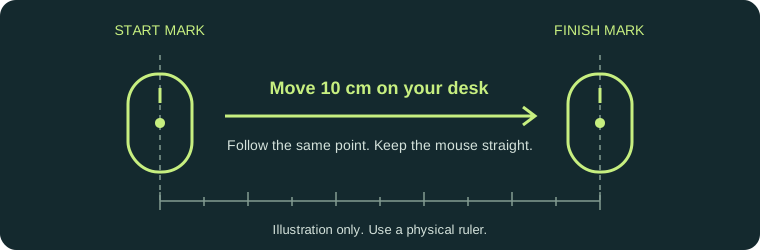
Use a ruler on the desk rather than measuring cursor travel on the screen. Keep the sensor over the same surface and avoid lifting, rotating or zigzagging the mouse. Maintain one DPI stage throughout your session. Start a fresh set after changing your mouse profile or input mode so the median compares like-for-like measurements.
The test requests unadjusted movement through pointer lock when possible. Pointer lock hides the cursor so a screen edge does not stop the measurement. Some browsers ignore the unadjusted option or cannot provide it. The input label describes the requested mode; it is not independent proof of hardware-level accuracy. If cursor lock is blocked, choose the drag test. It uses cursor movement and can be affected by operating-system pointer speed, acceleration, display scaling and browser zoom. Use a short measured distance that fits within the browser window; if the cursor reaches its edge, the run is canceled. Drag-test results are a rough sensitivity estimate, not a direct hardware DPI measurement.
DPI vs sensitivity vs eDPI
These settings describe different parts of the same movement. DPI controls the mouse’s input density, while game sensitivity controls how that game uses it. eDPI combines the two into a comparison number.
Three settings, three different meanings| Term | Meaning | Example |
|---|
| Mouse DPI | Movement counts reported for each inch of physical mouse travel. | 800 DPI |
|---|
| In-game sensitivity | The game’s setting for scaling mouse movement. | 0.5 sensitivity |
|---|
| eDPI | Mouse DPI multiplied by the sensitivity value in that game. | 800 × 0.5 = 400 eDPI |
|---|
eDPI = mouse DPI × in-game sensitivity
For example, 800 DPI at 0.5 sensitivity and 1600 DPI at 0.25 sensitivity both give 400 eDPI. Within the same game and input configuration, these can produce approximately the same turning speed. eDPI is not a universal comparison across different games because their sensitivity scales may differ.
To change hardware DPI, use the DPI button or manufacturer software supported by your mouse. Windows pointer speed and Mac tracking speed affect cursor behavior; they do not rewrite the mouse’s hardware setting. A basic mouse may use a fixed DPI value, while a gaming mouse may provide several configurable stages.
Why your DPI result may change
A manual mouse DPI check combines your distance measurement with the movement the browser receives. Small differences between runs are expected. Before concluding that the mouse is faulty, check these possible causes:
- Distance mismatch: The mouse stopped before or after the ruler’s finish mark.
- Very short travel: A small measuring error becomes a larger share of the total distance.
- Direction changes: The mouse rotated, moved diagonally or reversed during the run.
- A different DPI stage: A profile switch or DPI button changed the active setting.
- Tracking interruptions: The mouse was lifted or the sensor struggled with the surface. Try a clean, consistent mousepad.
- Different input processing: Switching test methods, changing pointer speed or using acceleration can affect the estimate. Zoom and display scaling can also affect drag-test readings.
- An interrupted connection: If a wireless mouse also stutters or disconnects, check its charge and connection before measuring again.
Repeat three to five runs with the same settings and method. Compare the median and run spread. If readings stay far apart, recheck the ruler distance and active mouse profile. Consistent results show repeatability, but they do not prove that a browser estimate exactly matches hardware DPI.
A focused mouse tester, with clear limits
This tool measures movement sensitivity. A mouse click checker, double-click test, scroll test, polling-rate tester and latency analyzer answer different questions. The page does not claim to diagnose every mouse problem. Use your manufacturer’s documentation to confirm supported settings, and treat a browser measurement as a practical cross-check.
The instructions are readable on mobile, but a touchscreen cannot supply the physical mouse movement needed for a valid DPI test. Use a supported desktop or laptop browser with a real mouse. If the cursor will not lock, open the website directly in its own tab and try again.
Measurement reference: MDN Pointer Lock API documentation.